Claude Cowork ships with a Productivity plugin that turns it into a work companion — task tracking, memory of your projects and people, and a dashboard to see it all. Five minutes of setup and it has context about your work that carries across sessions.
Here’s how to set it up:
1. Install the plugin
Install the Productivity plugin from the plugin store — here’s how. It’s one of the default options.
2. Connect your tools
This is optional upfront. You can head to connectors and hook up your tools beforehand — task tracker, calendar, chat, email — or wait until the system asks you during setup. It’ll prompt you to connect the tools it needs when it needs them.
3. Start a Cowork session
Create a new folder on your machine (this becomes your workspace), then start a Cowork session pointed at that folder.
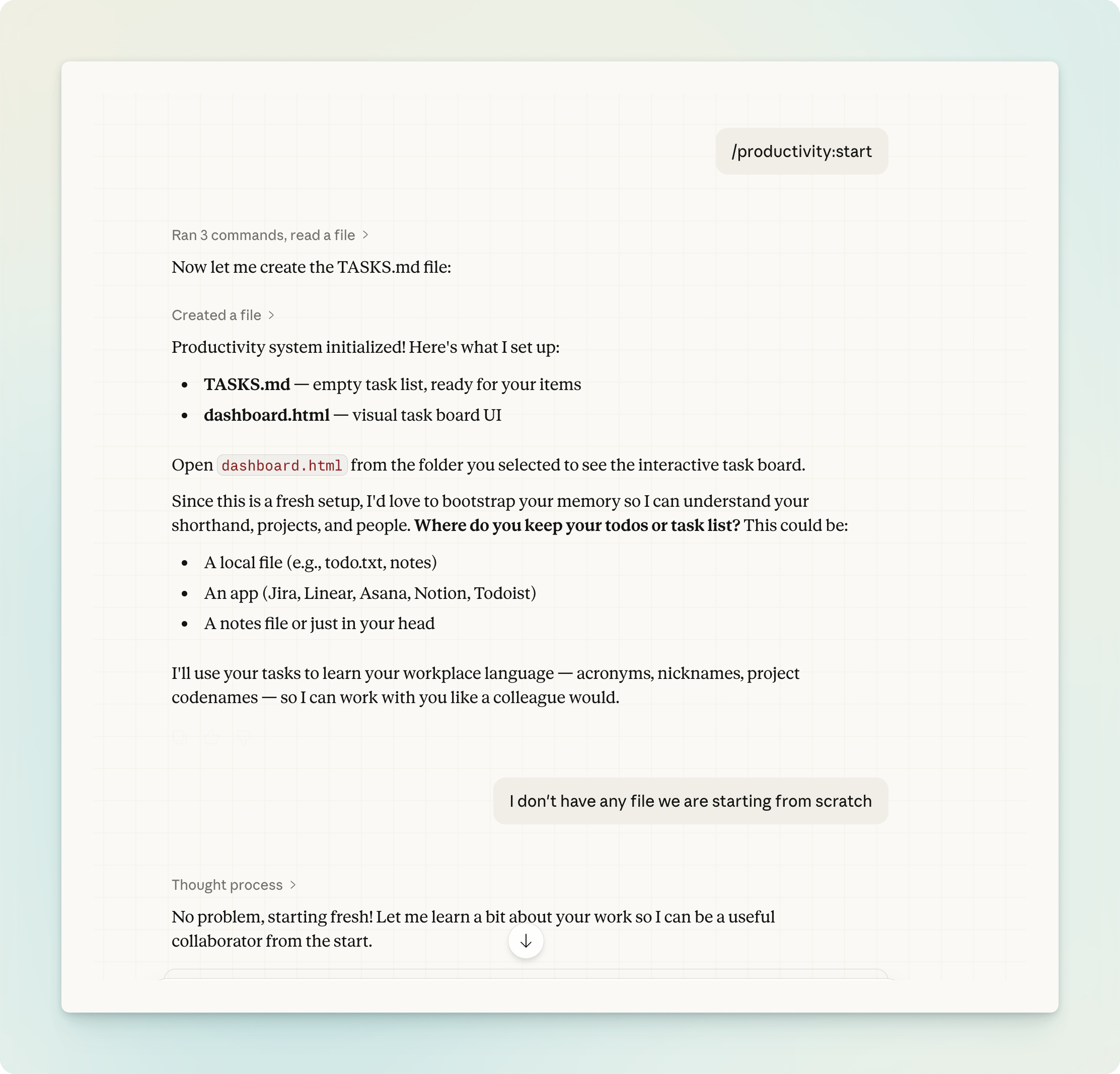
4. Run /productivity:start
This kicks off a setup flow that creates a task file, a memory file, and a visual dashboard in your workspace folder. It builds a local context layer that remembers your projects, people, and terminology.
5. Let it learn your world
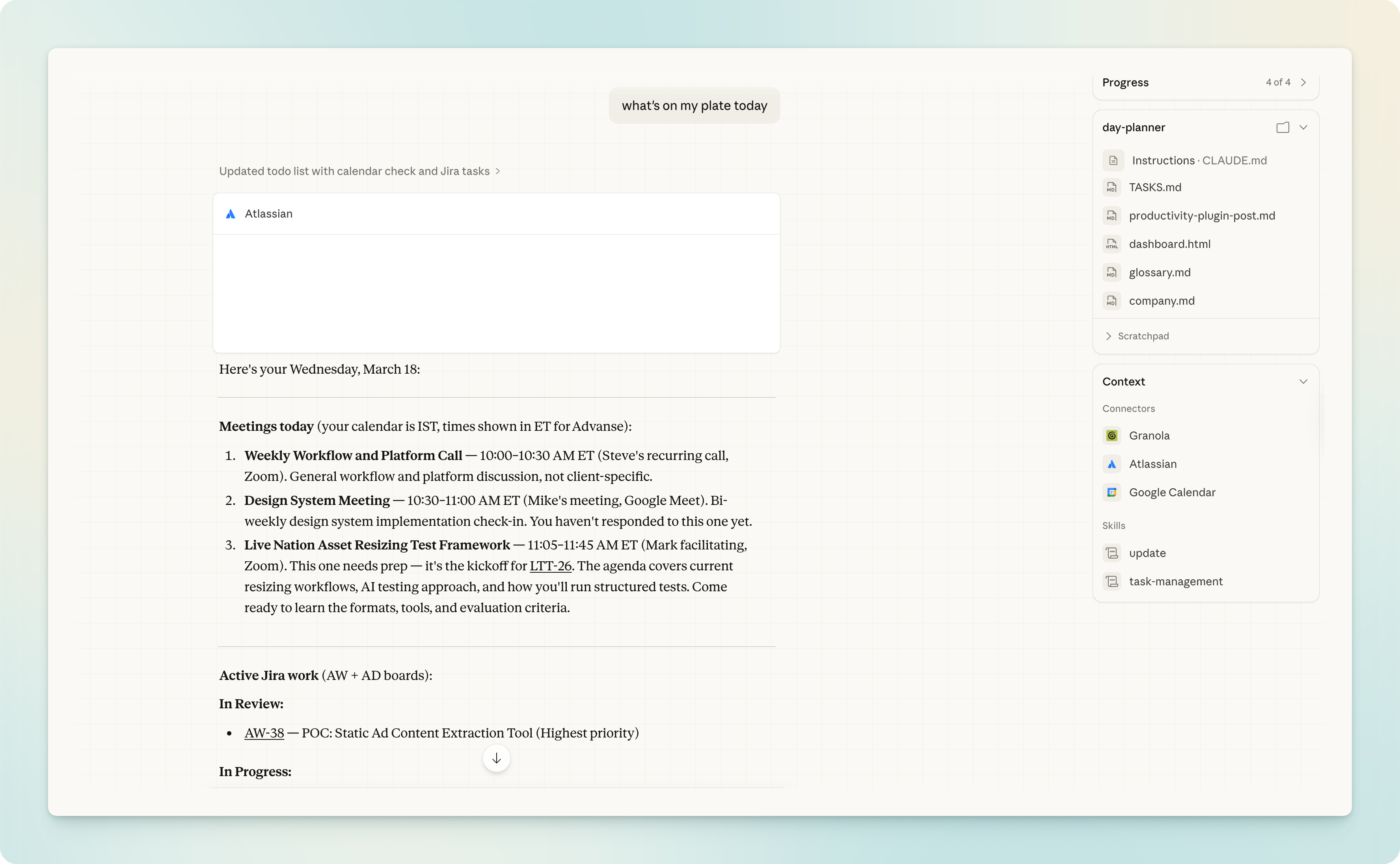
It’ll pull context from your connected tools — key people, projects, and terminology from your existing tasks and conversations. Where it isn’t sure about something, it asks you to confirm. The result is a system that understands your shorthand and doesn’t start from scratch every session.
From here
Use it to plan your day, track tasks, or get quick updates. Run /productivity:update to sync, or just talk naturally — “what’s on my plate today” or “add a task for the template fix.” The real unlock is that it now has persistent context about your work.